Example: appointment reminders
Mucky Mutts is a busy dog grooming business. It wants fewer missed appointments, so it texts each customer a reminder and asks them to reply to confirm.
The spreadsheet
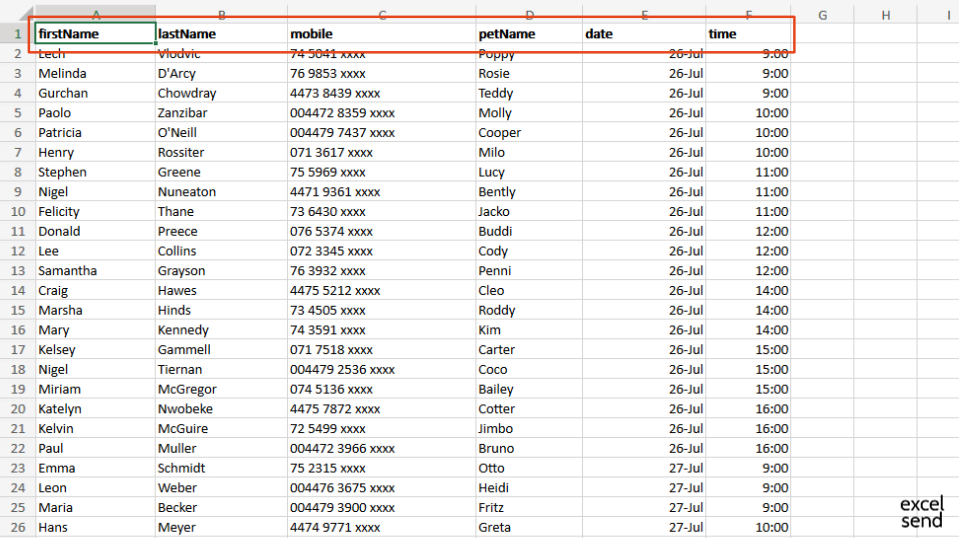
Row 1 has the column headers. Each row below is one appointment: the customer’s name, mobile number, the pet’s name, and the date and time.
Open ExcelSend
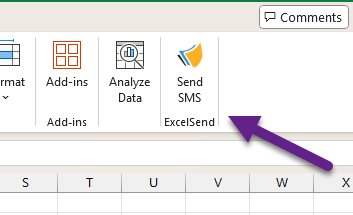
Click Send SMS on the Home tab.
Set up the send
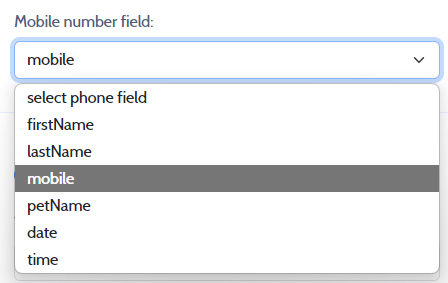
Mobile number field. Choose the column that holds the mobile numbers.
Replies. Choose Allow replies so customers can confirm by text.

The alternative is a Sender ID, which shows the business name but can’t be replied to. What’s available depends on the country. See Replies and Sender IDs.
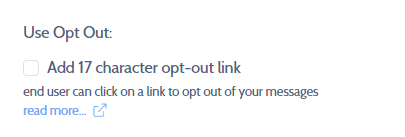
Opt-out. Tick Add 17 character opt-out link so anyone who doesn’t want messages can stop them. Because replies are allowed, customers can also reply STOP.
Send when. Leave it on Now. You could choose Later to send at a set time.

Reports. Tick Add report fields to spreadsheet to get delivery data and replies back into the sheet.
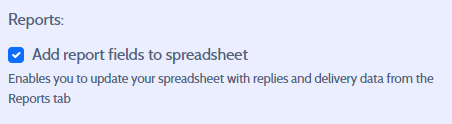
This adds extra columns to the right of your data.
The message
The message uses merge fields to include the pet’s name, date and time from each row:
A reminder that ^^petName^^ has a grooming appointment with Mucky Mutts on ^^date^^ at ^^time^^. Please reply to confirm. Thanks!
Preview and send
Click Create Preview to see every message, with its size and cost and the total at the bottom. Then click Send messages.
The replies
After sending, the report columns are in the sheet, with only exs_jobReference filled in. Later, open ExcelSend again, go to the Reports tab and click Refresh. The columns fill with delivery data, a copy of each message and the customers’ replies.
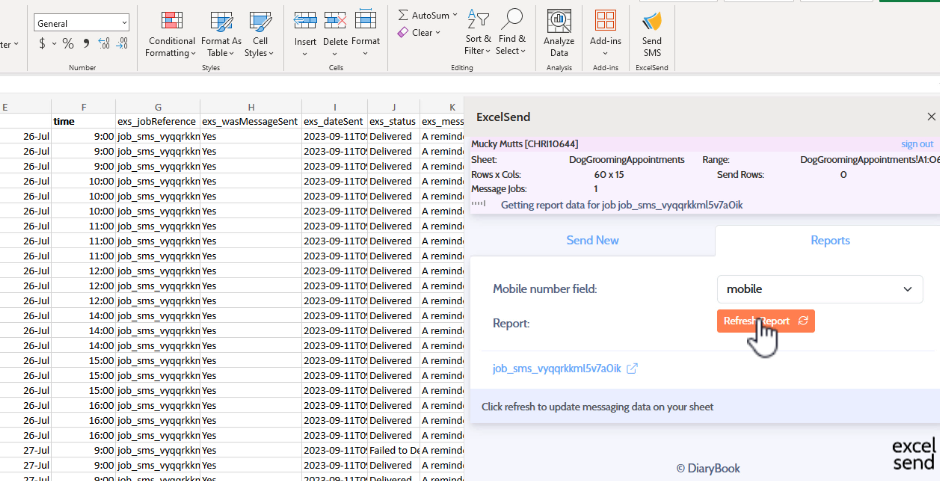
Refresh again later to pick up any new replies.